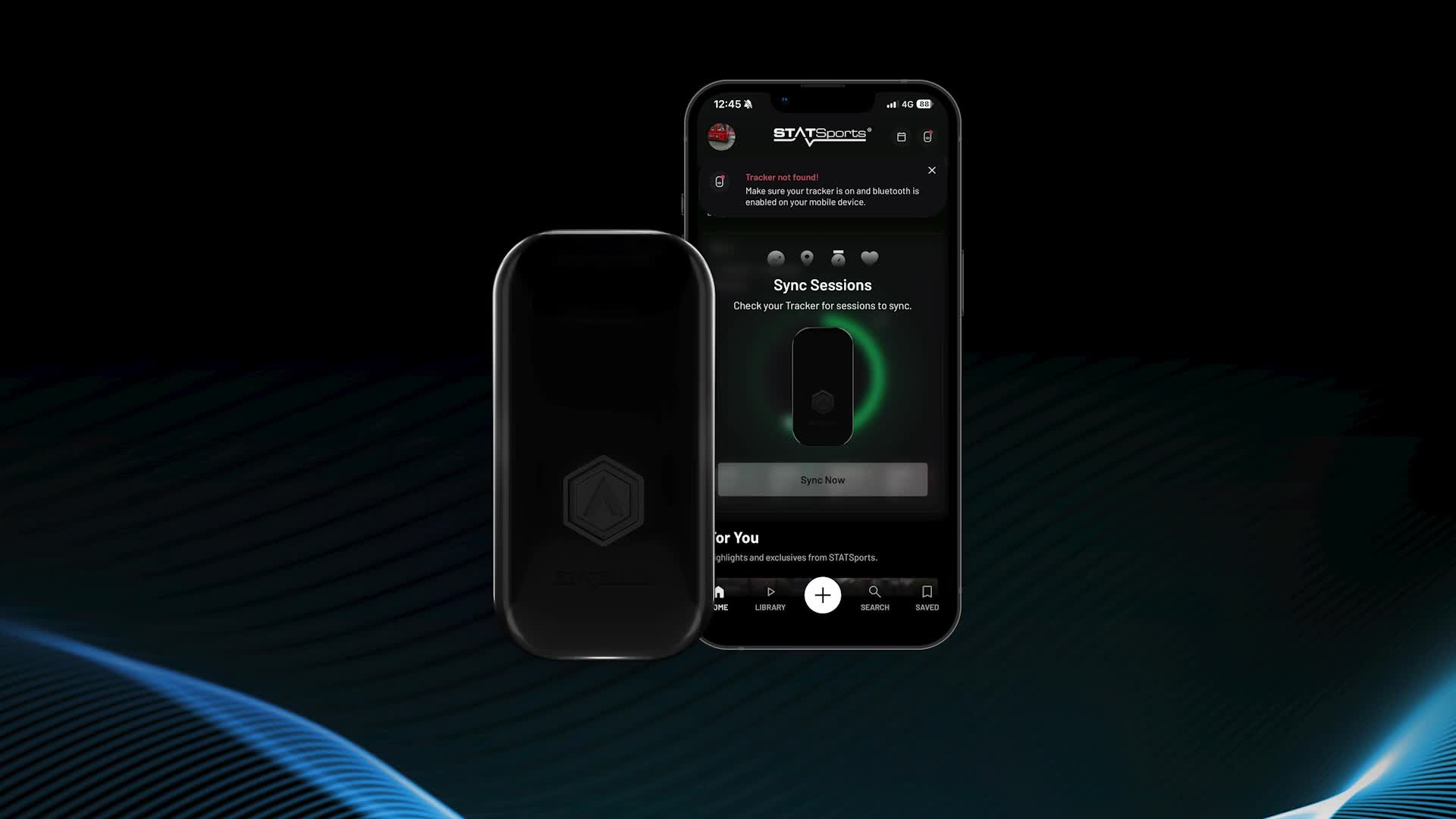
UNPAIR GPS STAT SPORT - OLD APP
This video provides a step-by-step guide for athletes who already own a Statsports GPS tracker and are switching from the old Statsports application to the new Statsports Academy app.
The guide explains the correct migration process, including unpairing the tracker from the old system and completing the initial setup in the new application.
Following these steps ensures a smooth transition, prevents connection issues, and avoids common errors such as “GPS tracker not found.”
This guide is intended for existing Statsports users and should be completed before using the tracker in training or match sessions.
Switching from the Old to the New Statsports App
Step 1 – Prepare the Old App
Open the old Statsports app on your mobile device and turn on the GPS Pod.
In the app, go to the bottom-right menu (three lines) and select Configure Tracker.
⚠️ Important:
The GPS Pod must be powered on and blinking while searching for GPS signal.
If the word Download appears:
Close both the app and the GPS Pod
Restart the process from Step 1
Step 2 – Unpair the GPS Pod
Select Unpair tracker / pod.
When a message appears on the GPS Pod:
Press Confirm using the GPS button
Once the process is completed:
Turn off the GPS Pod
Close the old Statsports app
Step 3 – Download the New App
Go to the Play Store or App Store and download the Statsports Academy app.
(The app may appear as Statsports or Statsports Academy, depending on your device.)
Step 4 – App Setup & Squad Access
Open the new app and follow the on-screen setup steps.
⚠️ Important:
When the app asks you to select a SQUAD, enter the code JJ84 and contact the NFA technical team immediately so we can approve your access and allow the setup to continue.
Step 5 – GPS Pod Connection
Turn on the following:
GPS Pod
Location
Wi-Fi
Bluetooth
All four are required (VERY IMPORTANT).
Wait until:
The Sync indicator appears
The indicator turns green (top-right corner)
Your GPS Pod is visible in the app
Troubleshooting – GPS Not Found
If you see a red indicator or the message GPS tracker not found:
Close the app
Turn off the GPS Pod
Open the app first
Then turn on the GPS Pod
Wait until the Sync indicator turns green
This sequence resolves most first-time connection issues.
You’re Ready
Once all steps are completed, your GPS tracker is ready to use for training and match sessions.
For any issues or questions, please contact the NFA technical team for support.